Compare inventory and stock count sheets in Excel
To compare inventory and stock count sheets in Excel, match SKU and Warehouse together before checking Stock quantity. The same product can have different quantities at different locations. This example uses the book inventory as the reference and the physical count as the comparison file to find quantity changes and product-location records present in only one file.
Download the sample files
These fictional records are safe to use for practice. Each file contains only the data shown in this tutorial.
What is in the sample files
Reference file
| SKU | Warehouse | Stock quantity |
|---|---|---|
| SKU001 | WH-A | 100 |
| SKU001 | WH-B | 50 |
| SKU002 | WH-A | 0 |
| SKU003 | WH-A | 20 |
Comparison file
| SKU | Warehouse | Stock quantity |
|---|---|---|
| SKU001 | WH-B | 48 |
| SKU002 | WH-A | 0 |
| SKU001 | WH-A | 100 |
| SKU004 | WH-A | 10 |
Follow these steps
Align the count cutoff and units
Download baseline.xlsx as the book inventory and target.xlsx as the physical count. Use the same cutoff time, quantity units, SKU codes, and warehouse codes in your own files. Convert cases to individual units first if the two exports use different units.
Check what each inventory row represents
Add the book inventory as the Reference file and the physical count under Files to compare. Select Inventory in both. SKU001 exists in WH-A and WH-B, so SKU alone is not unique. For rows split by batch or bin, align the level of detail or add a third stable matching column.
Match SKU plus Warehouse
Select SKU and Warehouse under Match rows by, then Stock quantity under Columns to compare. Quantity is the value being checked, not part of the record identity. Keep Raw values for the numeric sample quantities.
Check the five product-location results
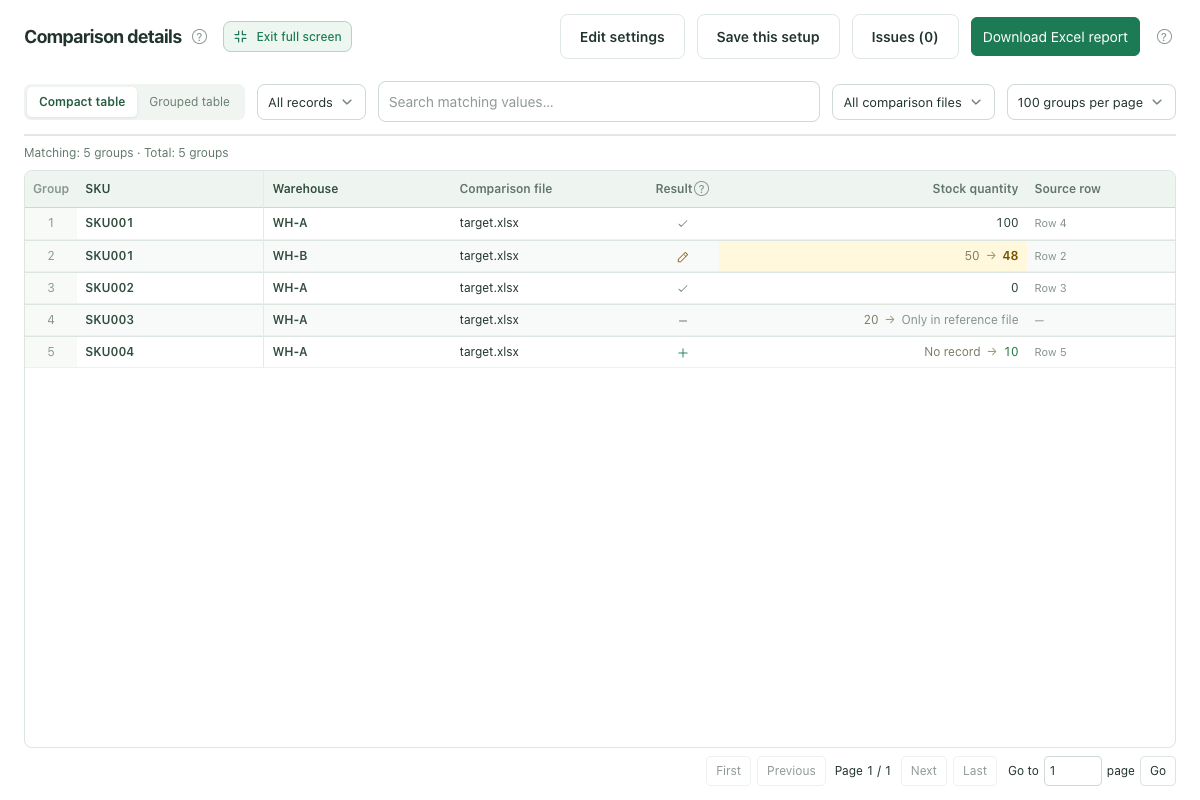
Click Compare files. SKU001 in WH-A stays at 100, while SKU001 in WH-B changes from 50 to 48. SKU002 in WH-A stays at zero. SKU003 in WH-A is missing from the count, and SKU004 in WH-A appears only in the count. Select All records to see the two unchanged rows.
Save the report for reconciliation
Download the full report and use source row references to check omitted count lines, codes, cutoff times, and stock movements. Review the business cause before posting any adjustment. RowKite does not adjust inventory or create accounting entries.
Expected results
Match rows by: SKU + Warehouse. Columns to compare: Stock quantity.
| Record | Result | What changed |
|---|---|---|
| SKU001 + WH-A | Same | Book inventory and physical count both show 100. |
| SKU001 + WH-B | Changed | For the same product in warehouse B, book quantity 50 changes to count quantity 48. |
| SKU002 + WH-A | Same | Both quantities are numeric zero. A zero-stock row is still a record. |
| SKU003 + WH-A | Only in reference file | The book record has quantity 20; the count has no matching row. An absent row is not a count of zero. |
| SKU004 + WH-A | Only in comparison file | The count has quantity 10 for this product-location pair; the book inventory has no matching row. |
Before using your own files
- Zero, a blank quantity cell, and an absent row have different meanings. Keep the zero-stock SKU002 record. Check whether SKU003 was omitted from the count, and investigate blank quantities in the source.
- If batches or bins produce multiple rows for the same SKU and warehouse, align the level of detail first. Repeated keys require review; RowKite does not total stock quantities automatically.
- The reference direction determines added and missing rows. Swap book inventory and count files and those statuses reverse; quantity changes are then read from the new reference.
- Inventory reconciliation needs the same cutoff time, units, and code definitions. Results describe differences in saved cell values. They do not establish the cause of a stock variance, adjust inventory, or post accounting entries.
Limits: 2–5 .xlsx files, 10 MiB per file, 30 MiB total, 10,000 rows and 50 columns per sheet, and 1 million populated cells across all files. Refreshing, closing the page, or leaving the workspace clears the current files.
Read the full guide and comparison rules · Learn how files and results are handled
Keep reading
Download sample files, follow the steps, and apply the same approach to your own records.